
Initializing IP Cameras
IP Camera Initialization
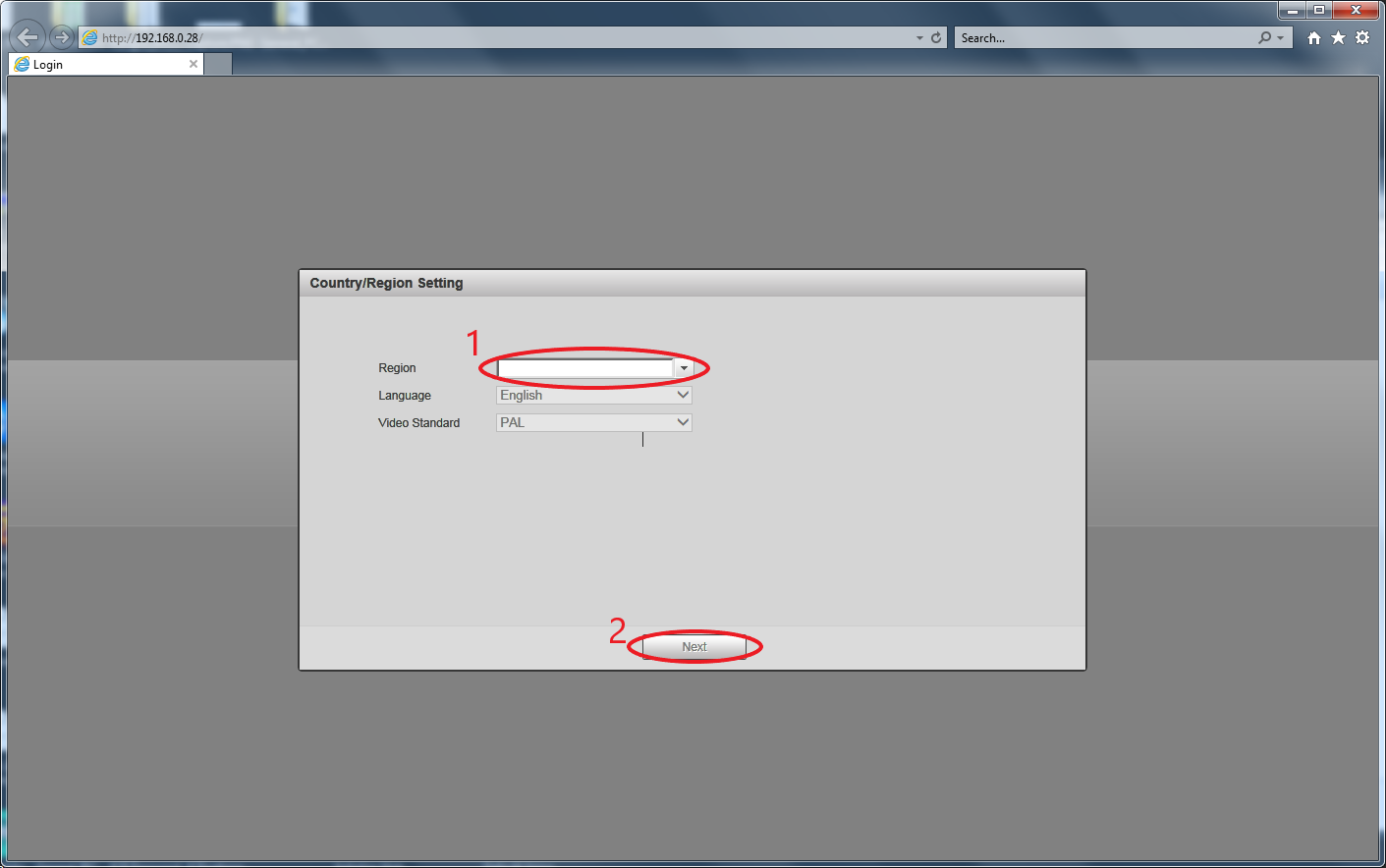
- Navigate to the cameras Web Graphic User Interface (GUI) by inputting its IP into the address bar of a web browser
- Select the region and click next. (Video Standard will change automatically when region is selected)
- Click Next after region has been selected
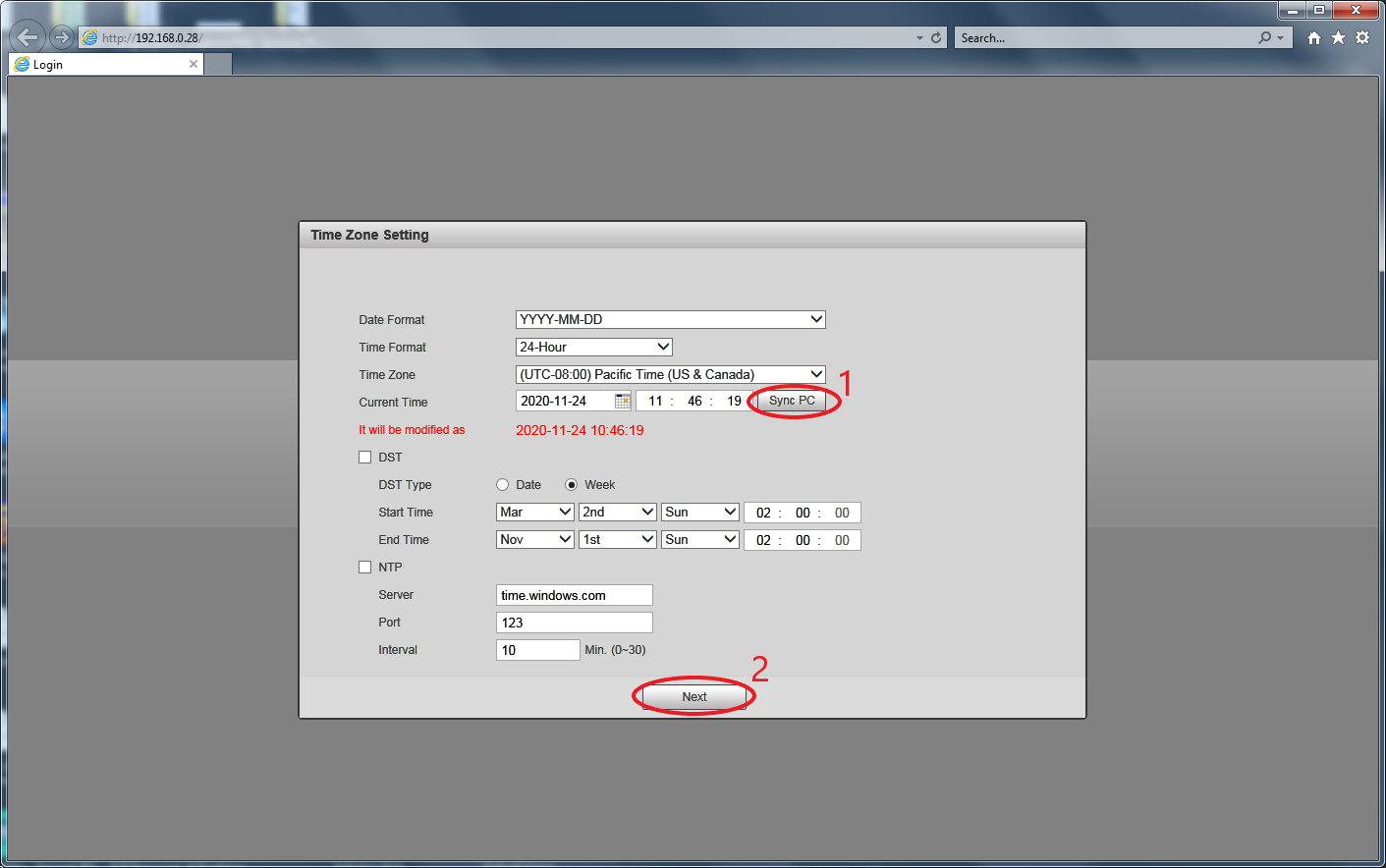
- To calibrate the cameras time, you may click Sync PC. This will synchronize the time your PC has to the camera. Alternatively, you may change the time and date manually.
- Configure the Daylight Savings Time (DST) as well as Network Time Protocol (NTP). If you will be utilizing these features, make sure the checkbox is marked to enable them.
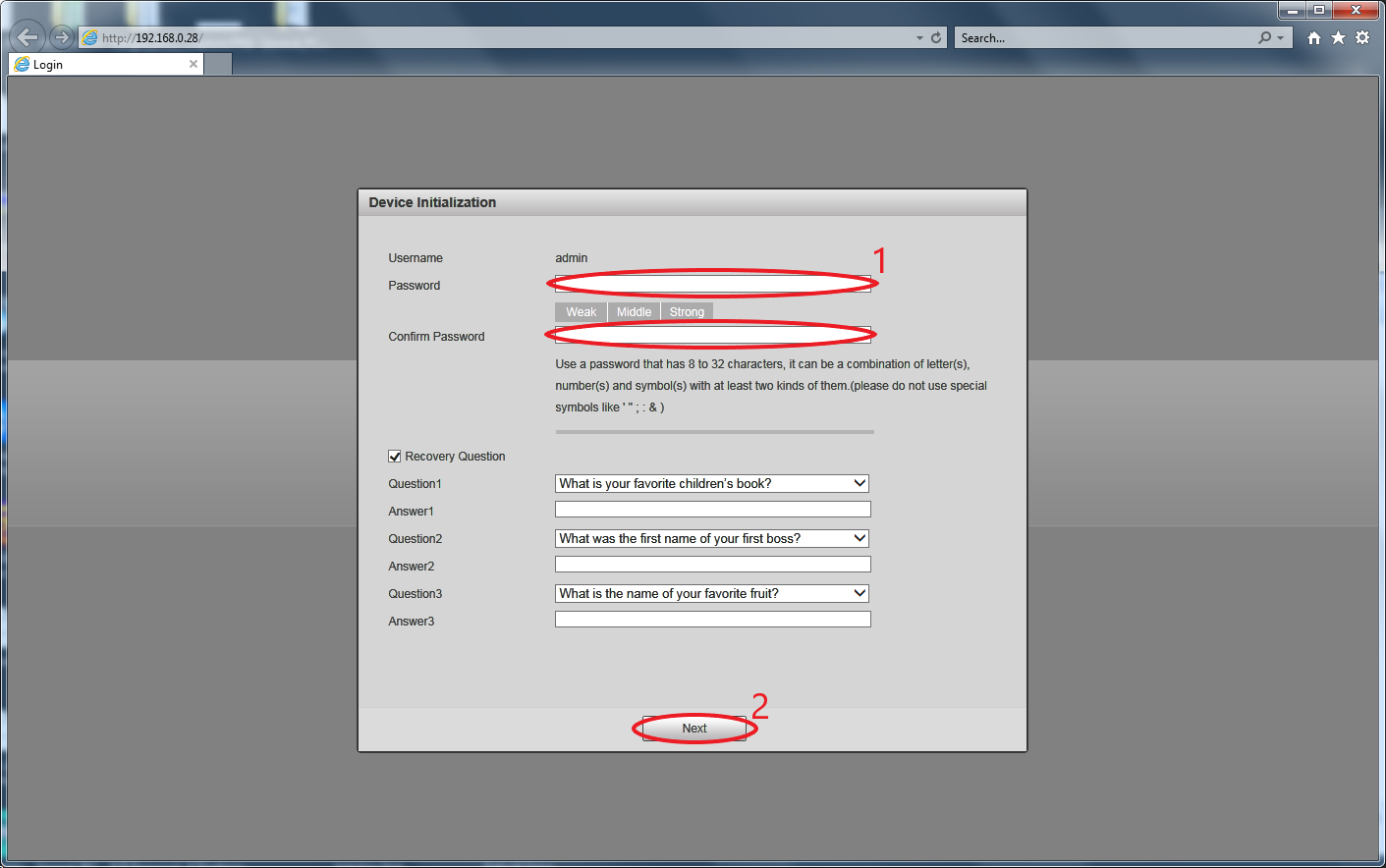
- Create your desired password for the camera as well as confirming the created password
- Recovery Questions are optional, if you would like to skip them, uncheck the checkbox next to the left of Recovery Question
- After you've created the password and optionally set recovery questions click on Next to complete initialization.
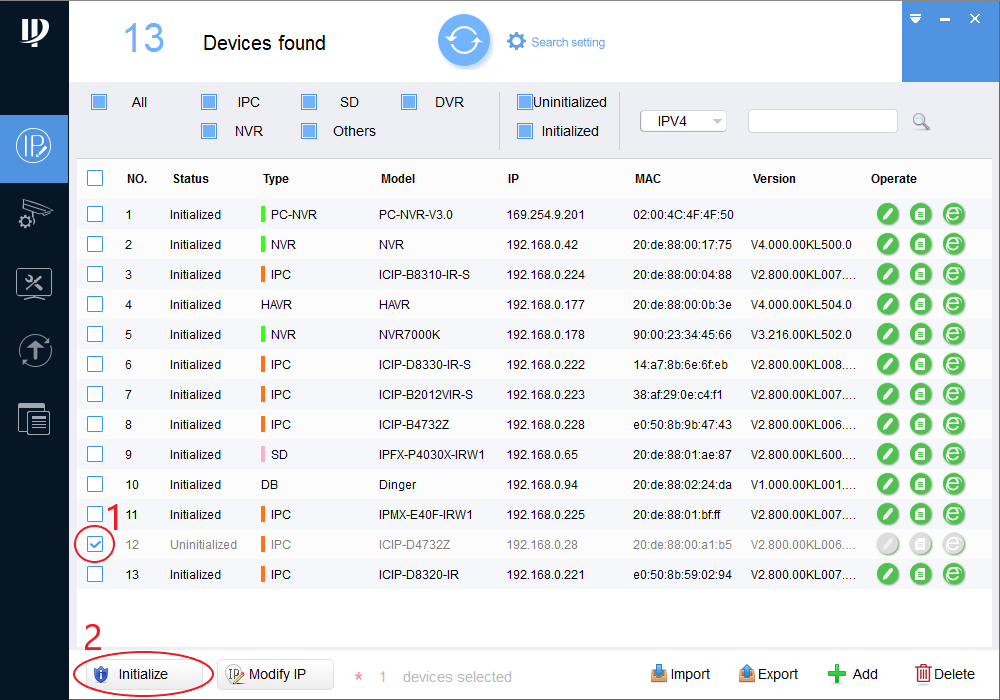
- Alternatively, you may use the ConfigTool for PC or MAC to initialize a camera.
- Complete a network scan with the ConfigTool, check mark the unintialzed camera you want to initialize and click on Initialize at the bottom left of the tool.
- The onscreen prompts will take you through the same steps as Web GUI initialization.
Still stuck?
Our support team answers by email. It helps to have these ready:
Model numberSerial numberFirmware or app versionWhat you have tried